
Managing Zeeq
GitHub Configuration
Connecting Zeeq to your GitHub repositories
Summary
The first setup action after creating an org should be to connect the GitHub App as most surfaces will not work until the GitHub App is connected.
This is performed from the Settings > GitHub configuration screen
Enabling repositories
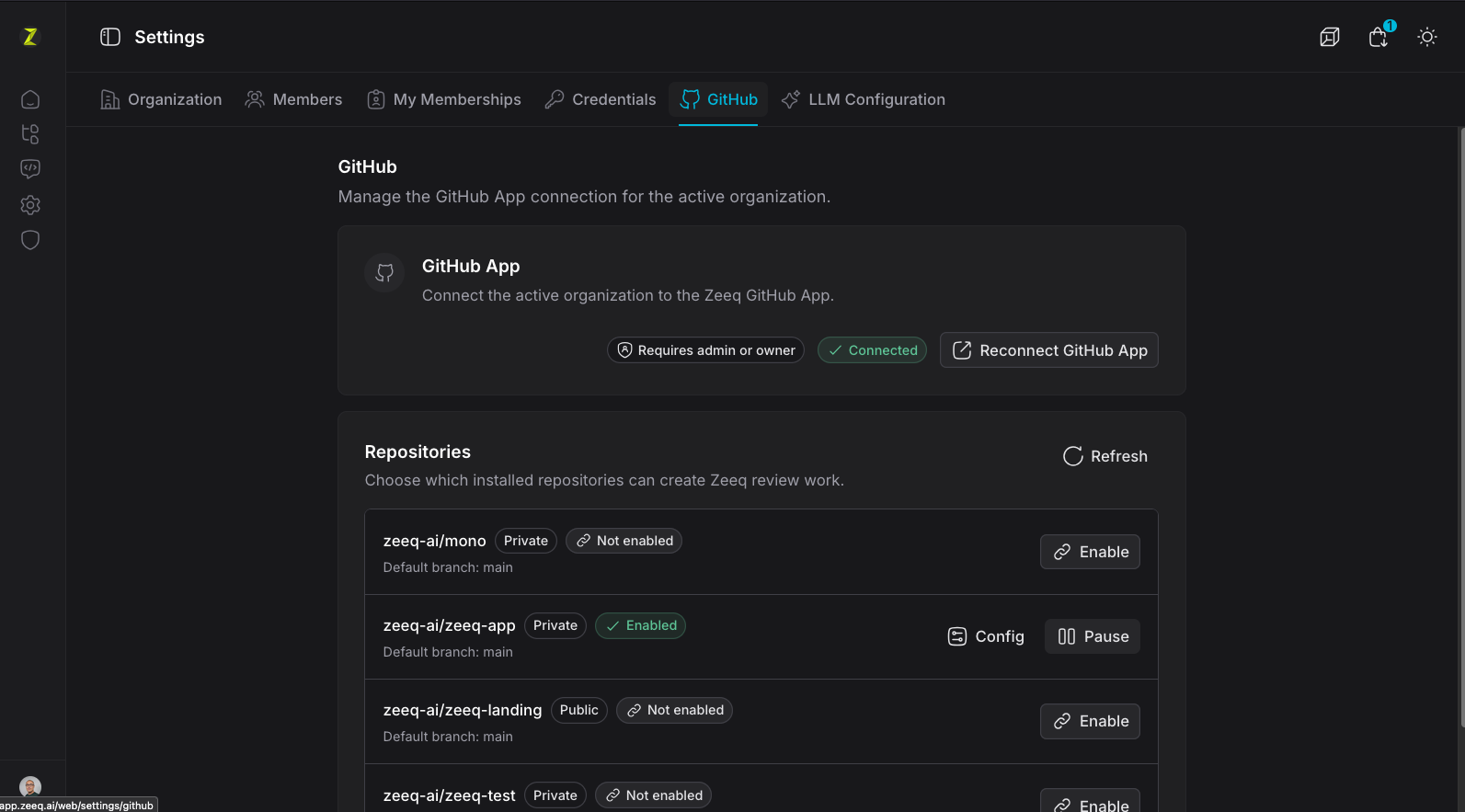
Repositories need to be enabled to receive webhooks.
Additional configuration
Repositories have additional configuration options:
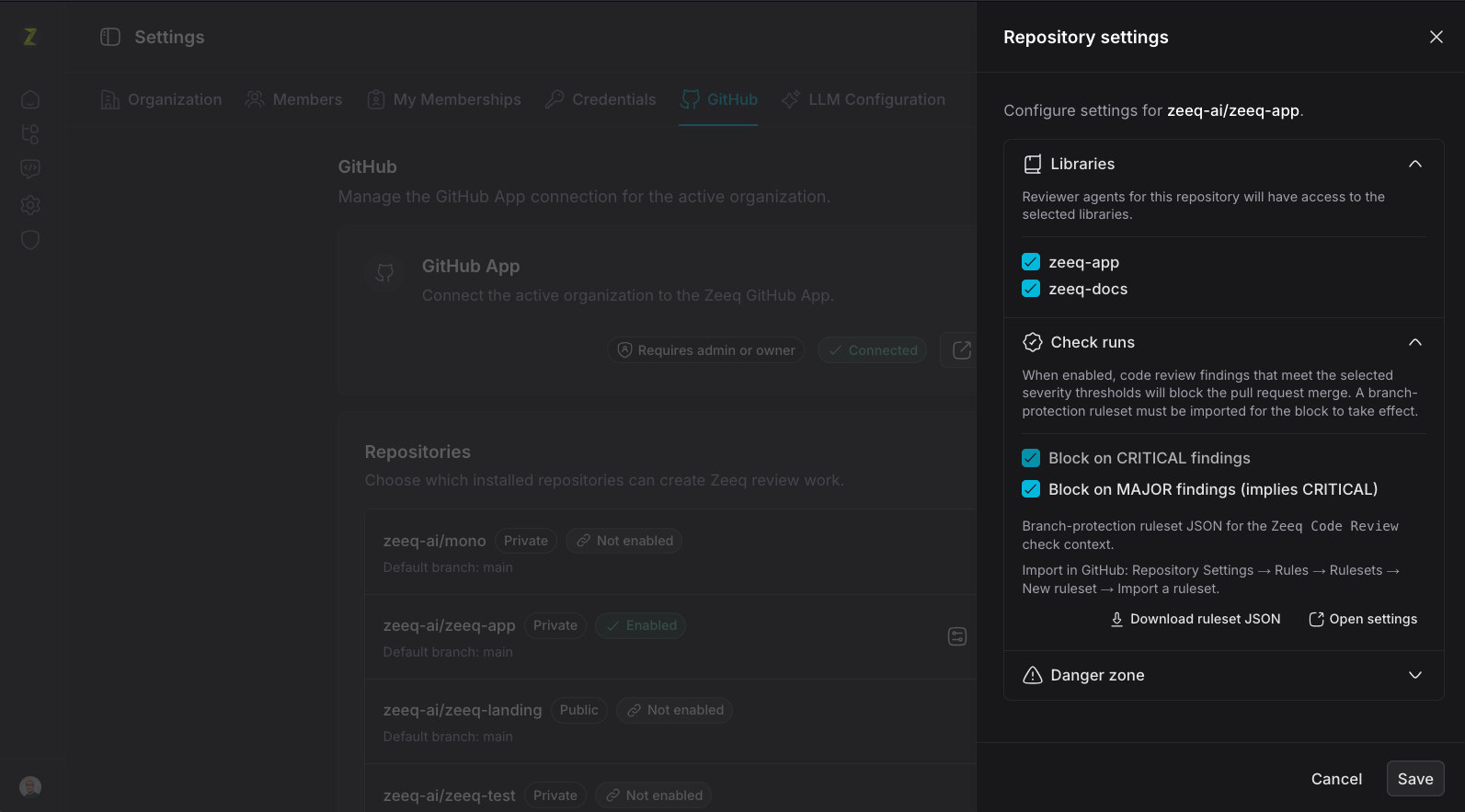
- Mapping to libraries. This is used when code reviews are triggered from PRs so that the agent reviewers know which libraries they can read from. This reverse mapping happens from the library as well when you add your first library.
- Enabling check runs. Check runs are enabled on a repository-by-repository basis and can be used to block merges when code reviews have one or more findings matching a target level. This does not operate the same way as code review comments since Zeeq does not leave code review comments (it only leaves a top level PR comment).
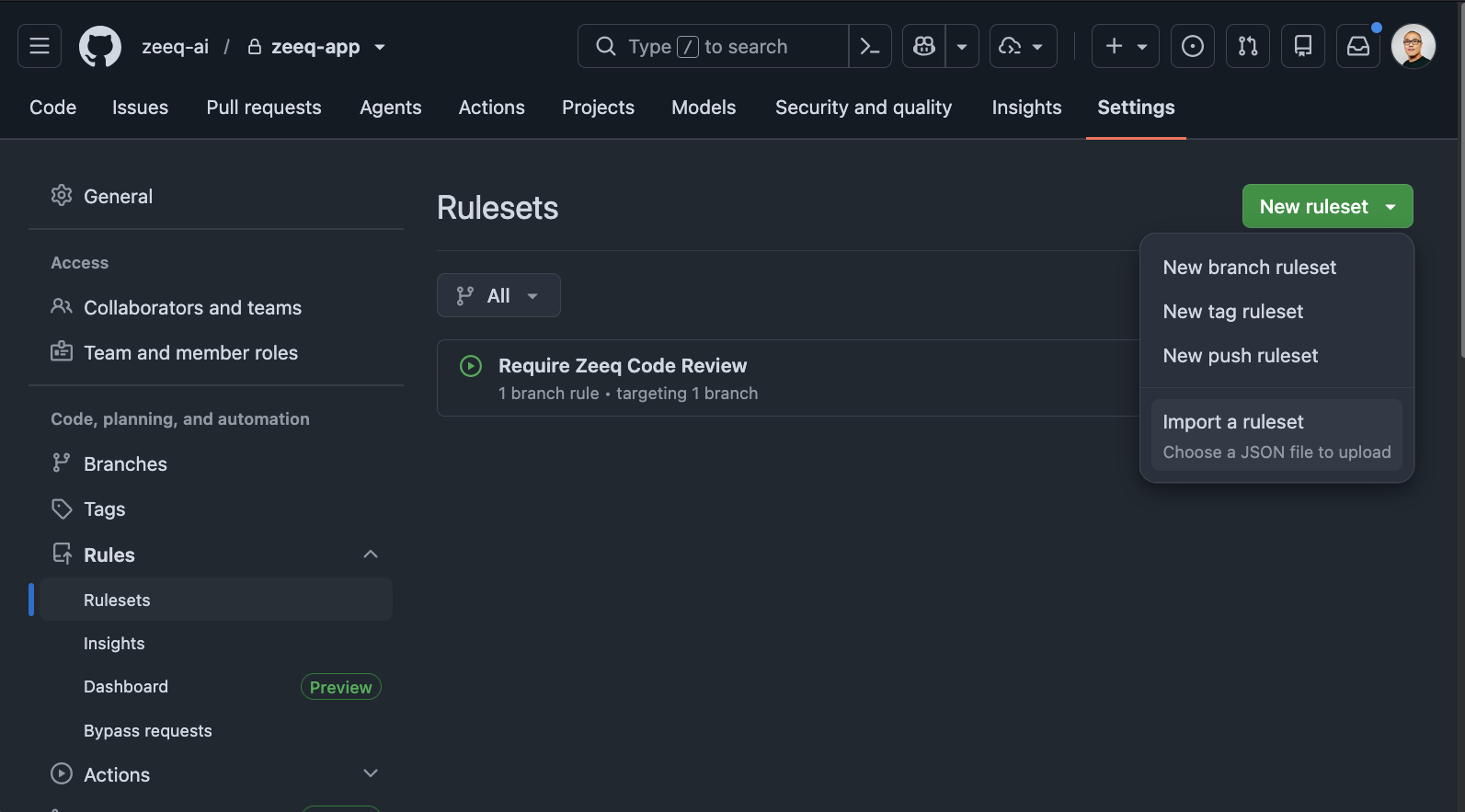
The check-run configuration requires importing the standard JSON into GitHub:
- Navigate to your organization
- Select Settings
- Expand Rules
- Select Rulesets
- Select New ruleset (top right)
- Select Import a ruleset (choose a JSON file to upload)
The JSON file:
check-run-rules.json
{
  "name": "Require Zeeq Code Review",
  "target": "branch",
  "enforcement": "active",
  "conditions": {
    "ref_name": {
      "include": [
        "~DEFAULT_BRANCH"
      ],
      "exclude": []
    }
  },
  "rules": [
    {
      "type": "required_status_checks",
      "parameters": {
        "required_status_checks": [
          {
            "context": "Zeeq Code Review",
            "integration_id": 4316328
          }
        ],
        "strict_required_status_checks_policy": false,
        "do_not_enforce_on_create": true
      }
    }
  ]
}
Check runs can be bypassed in the Zeeq UI or from the GitHub actions details view