
Notion Integration
Summary
Zeeq can ingest and index documents from a Notion workspace as the source for a knowledge library.
Using this approach yield several benefits over giving agents direct access to your Notion:
| Capability | Notion MCP | Zeeq Ingestion |
|---|---|---|
| Visibility and telemetry into which documents are referenced | ❌ | ✅ |
| Indexed search of each Notion document by section and by code snippets | ❌ | ✅ |
| Easily plugs into all surfaces your agents interact with: local coding, code reviews, etc. | ❌ | ✅ |
| Virtualized, composable, and reusable partitions of documents across projects | ❌ | ✅ |
Setting up a Notion backed library
Zeeq synchronizes content from Notion workspaces into a Zeeq knowledge library and agents interact with the Zeeq toolset to retrieve content.
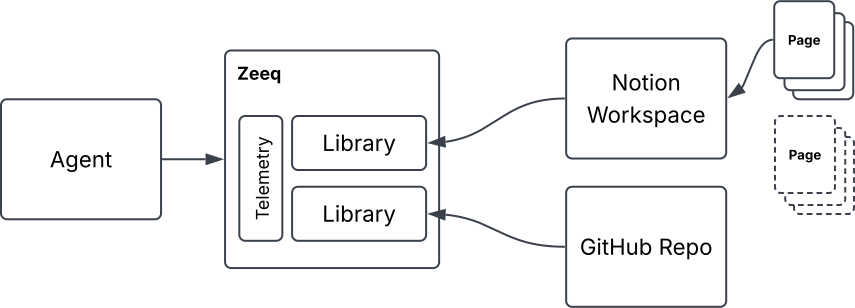
Notion uses the concept of a connection which is configured in a workspace and then associated with a page. When the page is connected, the connection can read the page and all child pages.
If you have specification documents in Notion, then you can connect the root page which will allow Zeeq to ingest and index all of the child pages.
/Specifications  <-- Connect here
  /Feature A     <-- Zeeq can access
  /Feature B     <-|
  /Feature C     <-|
/Other Docs
  /Feature D
  /Feature E
Create a Notion connection
First step is to set up a connection in Notion that Zeeq can use to access pages in the workspace.
- From the Notion developer portal, click on Connections on the left.
- Click + New connection and give it a name. Choose a name that represents the purpose of the library since pages are individually associated to this connection and each connection represents a single library in Zeeq.
- Use the default Access token authentication method
- Click Create connection and copy the Access token on the next screen.
Share pages with the connection
- In your Notion workspace, select a root level page and click the "..." menu at the top right.
- Scroll down to Connections and click Add connection
- Select the connection you created in the previous step and click Add to page to allow Zeeq to read the page and all child pages.
Setup the Zeeq library
Next is to create a library in Zeeq that uses the connection:
- Click on the Libraries menu item in Zeeq
- Click the + New at the top right and enter a name for the library
- Select Notion as the source type
- Enter the Access token copied from Notion into the Notion access token field
- Apply inclusion/exclusion paths as needed to limit the pages that are ingested into the library.
- Click Create to provision the library and immediately start the initial sync
Setting up the webhook (Optional)
If you do not set up the webhook, then Zeeq will only sync on demand when a user requests a full or incremental sync manually.
The webhook setup requires Notion sending a webhook with a validation token to Zeeq that needs to be copied out and pasted back into Notion.
- From the Zeeq library, click Manage button at the top right
- In the panel, click Manage... and select Notion webhook
- Copy the Callback URL which contains an encrypted validation token
- From the Notion developer portal, select the connection created previously
- Click the Webhooks tab at the top
- Click the Create a subscription button and paste the copied Callback URL into the Webhook URL field in Notion
- Leave only Page selected and click Create subscription
- At the bottom, click the Verify button which will pop up a dialog and send a verification token to Zeeq.
- In the Zeeq UI, still on the panel, click Refresh to recover this verification token (it may take a few seconds to arrive)
- Copy the Verification token from Zeeq and back in the Notion developer portal, paste the token into the UI and click Verify subscription to complete the verification loop